



Booking & calendar
They book. It is in your calendar.
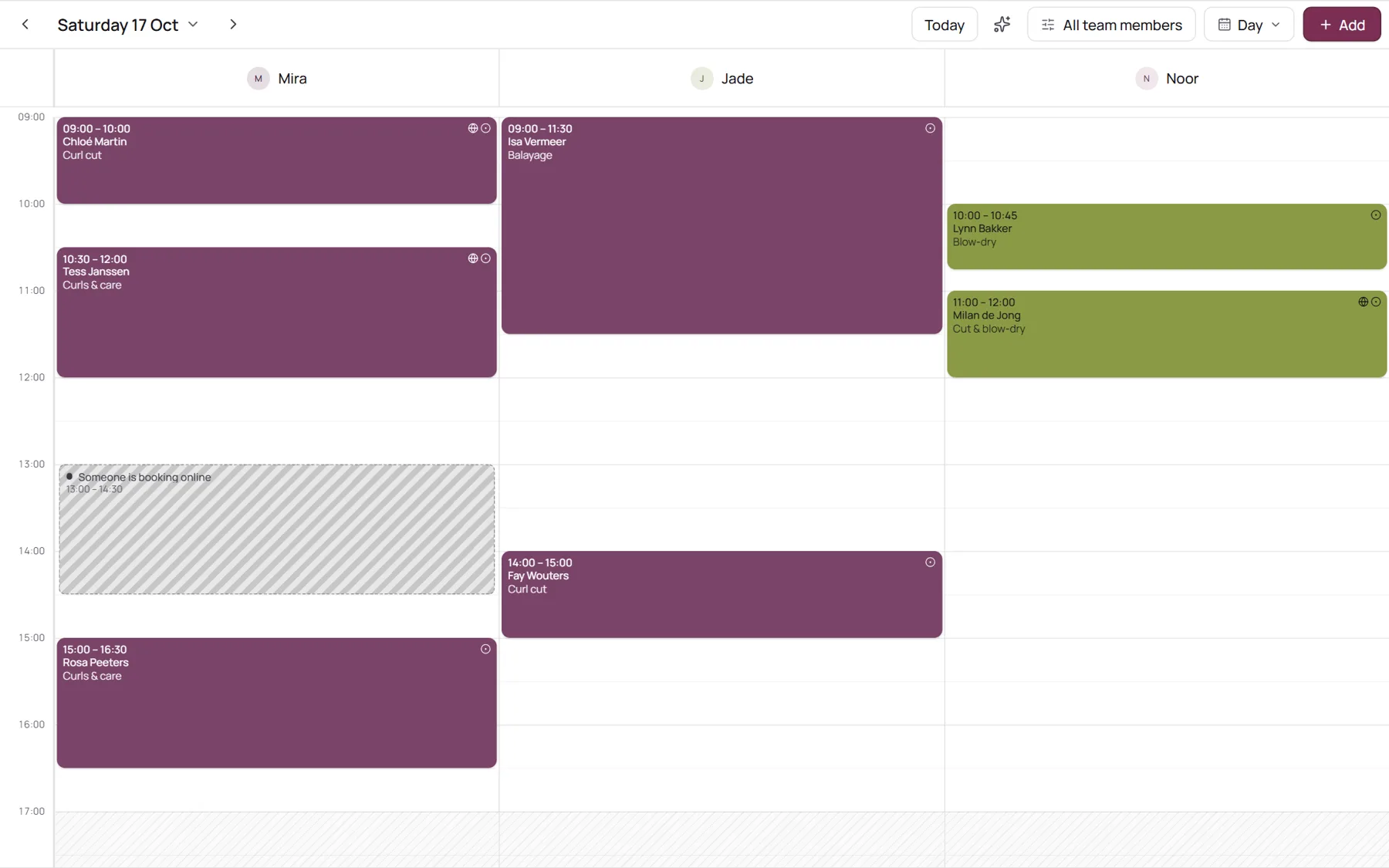
Your clients pick a treatment and a time on their phone, whenever it suits them. A moment later it is in your calendar, with their name, the treatment and a sign that they booked online.
Try it right here: book a time on the phone and watch it appear. Nothing is saved.
Step 1 of 3
Choose a treatment
Studio Mira

Point at an appointment to see the client card. Hold one and drag it to move it. The colours are yours: pick your own for every team member and treatment.
Online booking
Open for bookings, day and night.
Your booking page never closes. Clients only see the times that are really free, pick one and book in under a minute. While someone is booking, you see it in your calendar as it happens.
- Live availability per team member and treatment
- The earliest free time in one tap
- Smart start times on Pro: no gaps too short for any treatment
Calendar
Your week at a glance. Moved in a second.
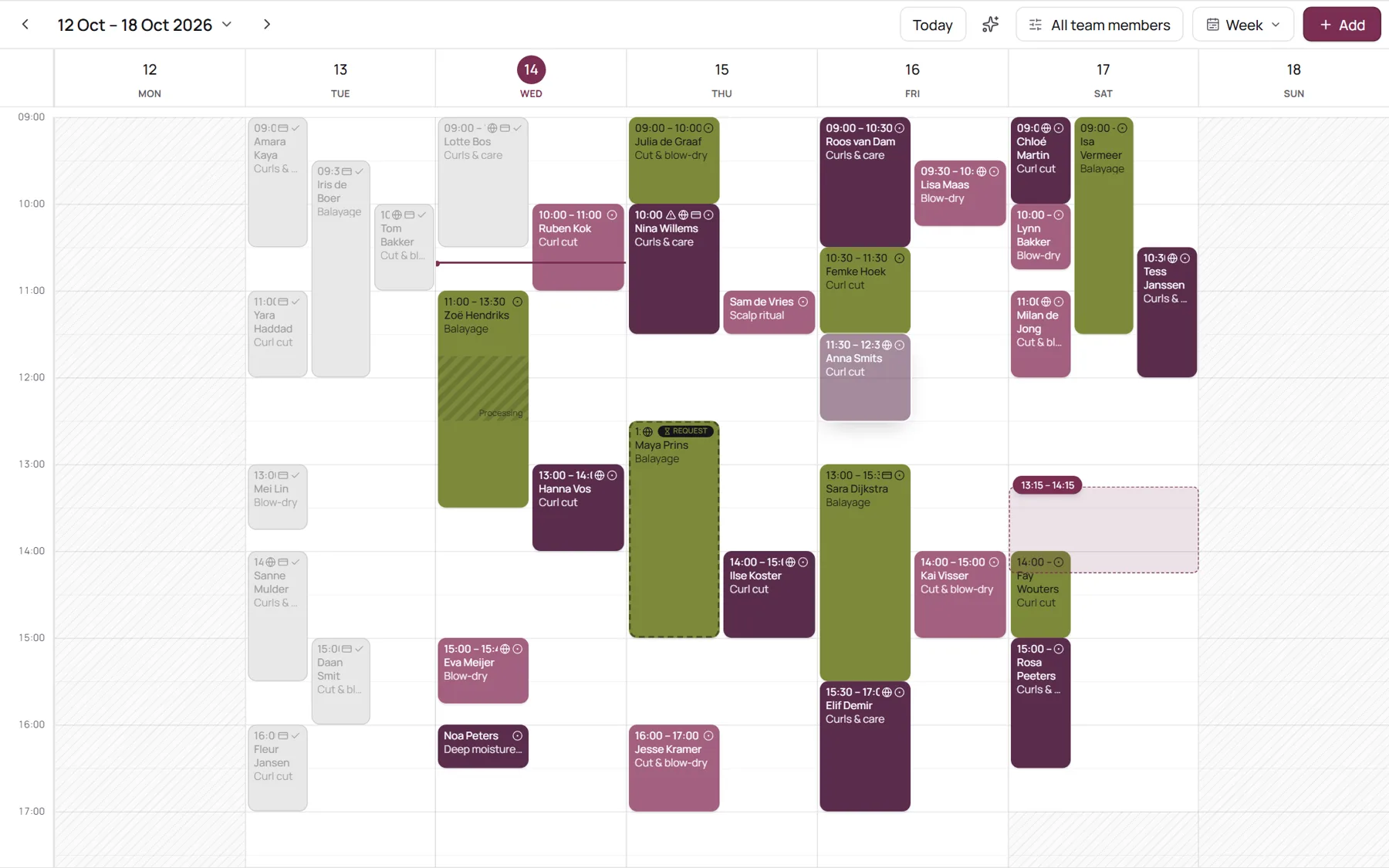
Week, day or list; in the day view every team member has a column. Hold an appointment and drag it to another time or day; NOZAIA asks whether to email the client the new time.
- Colour by treatment or by team member, in colours you pick yourself
- Filter by team member, pinch to zoom on a phone
- Block time for a break, training or a day off
Client card
Know who is coming before they sit down.
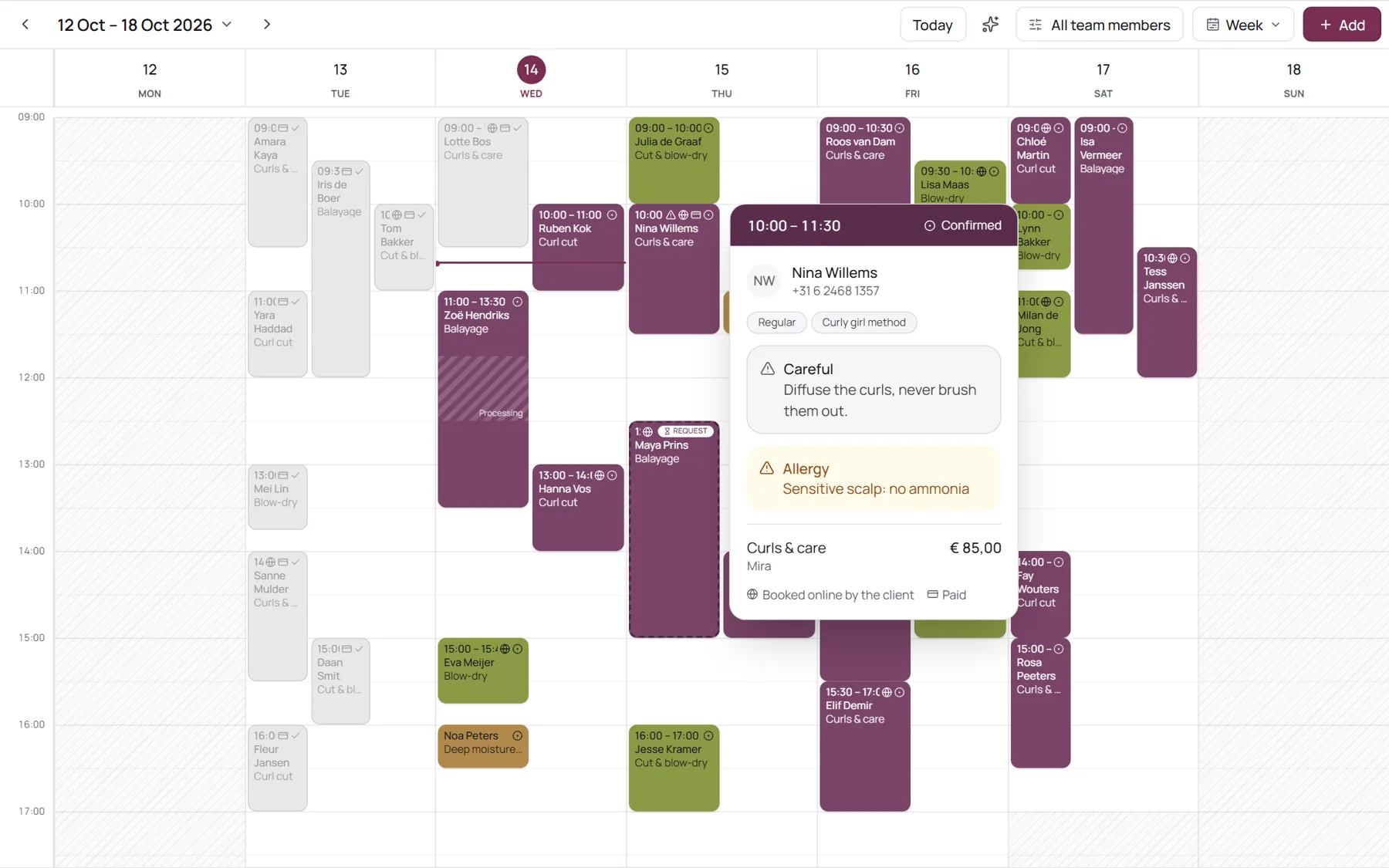
Point at an appointment and the client card appears: phone number, labels, the price and a note from your team. An allergy stands out in warning colours, so nobody misses it.
- A globe shows who booked online, a card who has paid
- Call the client, or send a reminder by WhatsApp or text
- Every change and every message, in order, on the appointment
Waiting list & repeats
Cancellations fill themselves.
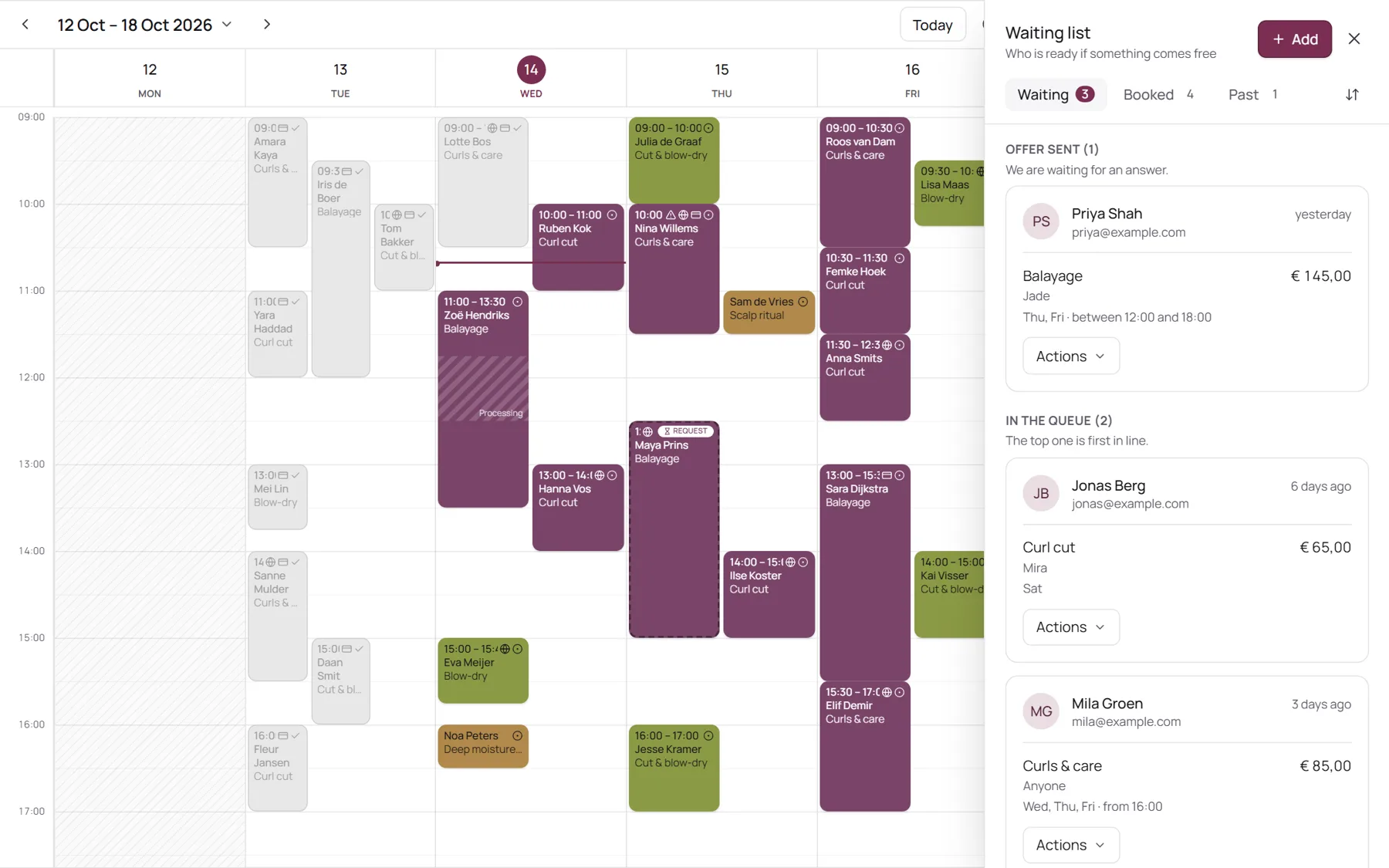
Day full? Clients put themselves on the waiting list. When a time opens up, NOZAIA offers it to the first person on the list it suits, with a link to say yes. No answer within 30 minutes, and it goes to the next.
- Clients choose which days and times suit them
- Several treatments in one visit, booked at once
- Plan a regular every week, or every 2, 3 or 4 weeks, in one go
Taking bookings in three steps
- 01Add your treatments
Name, duration and price. Give a category a colour and the calendar follows.
- 02Set your hours
Opening hours per team member, with breaks and days off.
- 03Share your link
In your Instagram bio, your WhatsApp status or on your own website.
Questions about booking and the calendar
Do clients need an account to book?
No. They enter their name and email and book. If they do have an account, their details are filled in already.
What if two people want the same time?
The first to confirm gets it. The other sees straight away that the time has gone and picks one of the times that are still free.
Can I still add appointments myself?
Of course. Tap an empty spot in the calendar or use Add. What you plan yourself and what clients book online sit in the same calendar.
Do clients get a confirmation?
Yes. They see it on screen straight away, can add it to their own calendar, and get the details by email.
Is the calendar on this page the real one?
Yes. The appointments, the client card and the bar on top are the same parts salons use every day, with a made-up salon in them. Nothing you do there is saved.
Your next booking could come in tonight.
Start your free trial, add your treatments and share your link.